

Add webhooks
Add your webhook URL in our system for us to deliver webhook events. Follow the instructions below to configure the webhook URL. Ensure to provide the publicly accessible HTTPS URL to your webhook endpoint.- Log in to the Merchant Dashboard and click Developers.
- Click Webhooks listed under the Secure ID card.
- Click Add Webhook URL in the Webhook screen.
- In the Add Webhook popup, fill in the following information:
- Webhook URL: Enter the URL in this field.
- Click Test & Add Webhook.
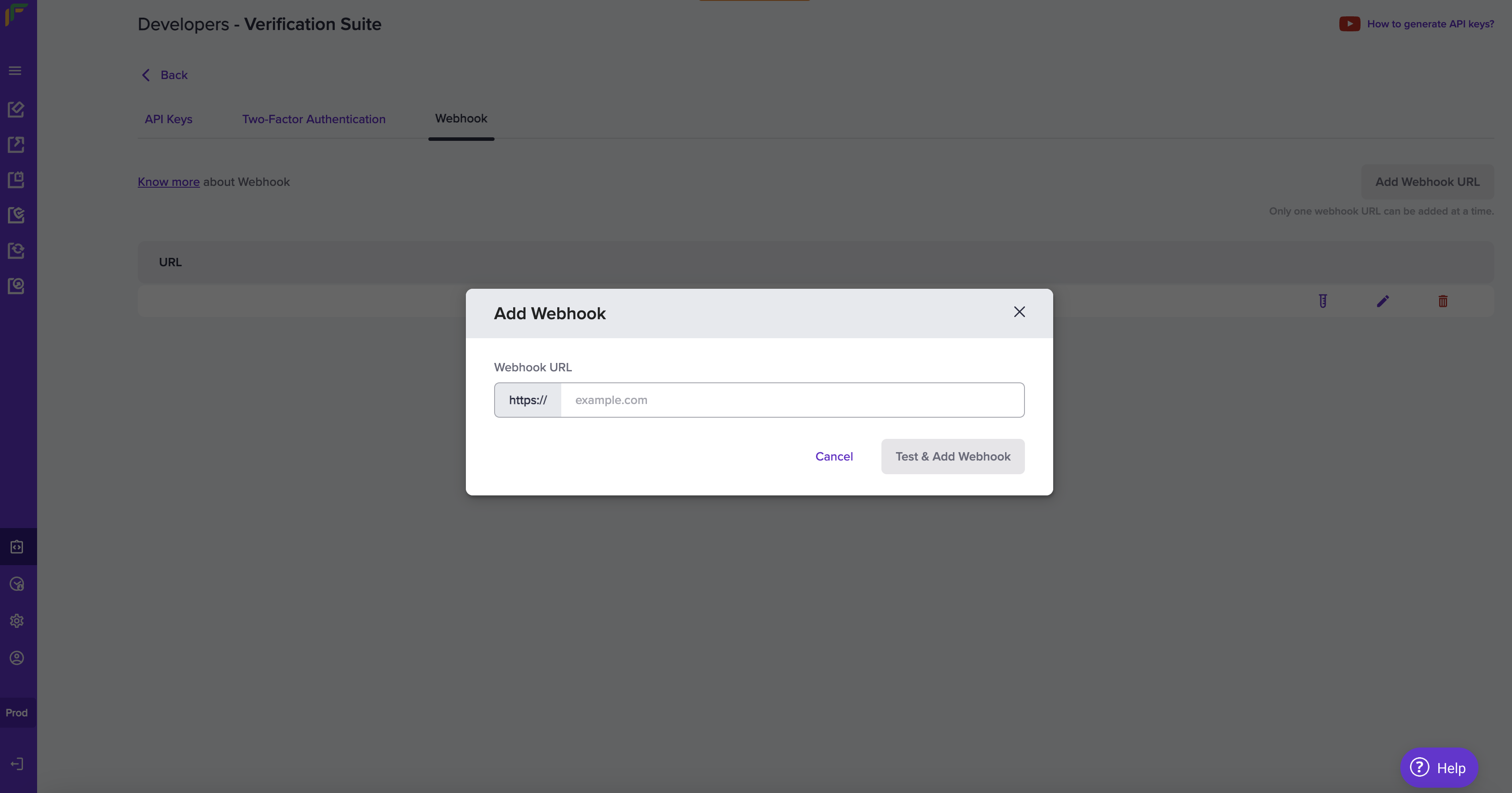
Add Webhook
Webhook events
The following events are triggered at different stages of the e-sign verification process:
E_SIGN_VERIFICATION_SUCCESS
E_SIGN_VERIFICATION_SUCCESS
E_SIGN_VERIFICATION_FAILURE
E_SIGN_VERIFICATION_FAILURE
E_SIGN_VERIFICATION_EXPIRED
E_SIGN_VERIFICATION_EXPIRED
Webhook signature
You will receive the webhook signature in the webhook header. Here is a sample header from a webhook request.Webhook payload fields
The webhook payload contains important metadata in its top-level fields.Verifying the signature is mandatory before processing any response. Refer to Signature Verification for more details.