

- Log in to the Merchant Dashboard.
- Navigate to Settings > Access Management.
User Management
Invite team members, assign roles and permissions, and manage user access to your account.
Role Management
Create custom roles with specific permission sets tailored to your organisation’s needs.
Permissions Framework
Control what users can view and manage across all products and features.
User management
User management allows you to invite team members to your Cashfree account and control their access through role assignments or direct permission grants. You can invite unlimited users and assign them different access levels based on their responsibilities.Default roles
Cashfree provides five default roles that cover common use cases. Each role includes a predefined set of permissions designed for specific responsibilities:Account owner
The account owner is the user who created the Cashfree account. Unlike the five default roles, this is a system-level designation assigned automatically at account creation and can’t be assigned through User Management on the Merchant Dashboard. Only one account owner can exist per account at any time.Account deletion cannot be initiated from the Merchant Dashboard. To request account deletion,
contact your account manager by email. Your account manager coordinates with
the Cashfree care team to process the deletion request.
Transferring account ownership
Account ownership can be transferred to another user on the account. Once transferred, the new user assumes all account owner permissions and the previous owner loses them. To transfer account ownership, contact Cashfree support or reach out to your Cashfree account manager with the request to transfer account ownership to the registered email address of the user you want.View detailed permissions by role
View detailed permissions by role
The following table shows what the account owner and each default role can access. Use this to understand which role best fits your team member’s responsibilities:
Invite a user and assign a role
Follow these steps to invite a user and assign one or more roles:- Log in to the Merchant Dashboard.
- Navigate to Settings > Access Management > User Management.
- Select Invite New User.
- Enter the email address of the user in the Registered email address field under User details.
- In the Assign roles section, select the roles you want to assign:
- Default roles: Select any of the five default roles (Developer, Operations, Manager, Admin, Support)
- Custom roles: Select any custom roles you have created in the Role Management section
- Review the permissions displayed in the Permissions section. When multiple roles are assigned, the permissions are combined.
- Select Invite New User.
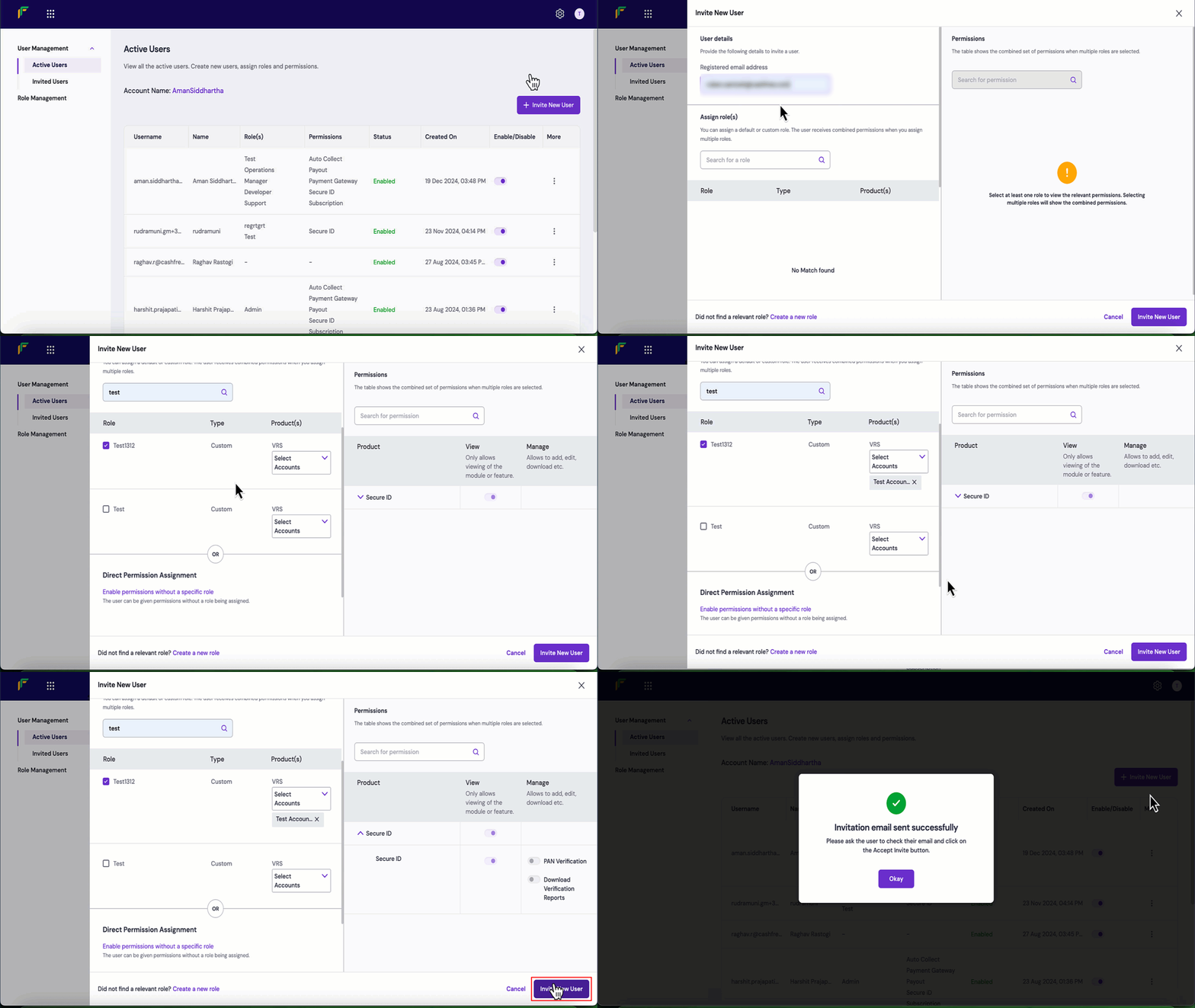
Invite a user with direct permissions
You can invite users and enable specific permissions without assigning a formal role. This approach is useful for providing temporary access to specific features or when a user’s responsibilities don’t align with existing roles. Follow these steps to invite a user and assign direct permissions:- Log in to the Merchant Dashboard.
- Navigate to Settings > Access Management > User Management.
- Select Invite New User.
- Enter the email address of the user in the Registered email address field under User details.
- Scroll down to the Direct Permission Assignment section and select Enable permissions without a specific role.
- Use the Select Account for Payouts or VRS dropdown to select the accounts the user can access (if applicable).
- Configure permissions in the Permissions section:
- Search for a permission: Use the search bar to find specific permissions
- Product dropdown: Navigate through different products and features
- View toggle: Enable or disable view-only access to modules or features
- Manage toggle: Enable or disable full access (add, edit, download, delete)
- Select Invite New User.
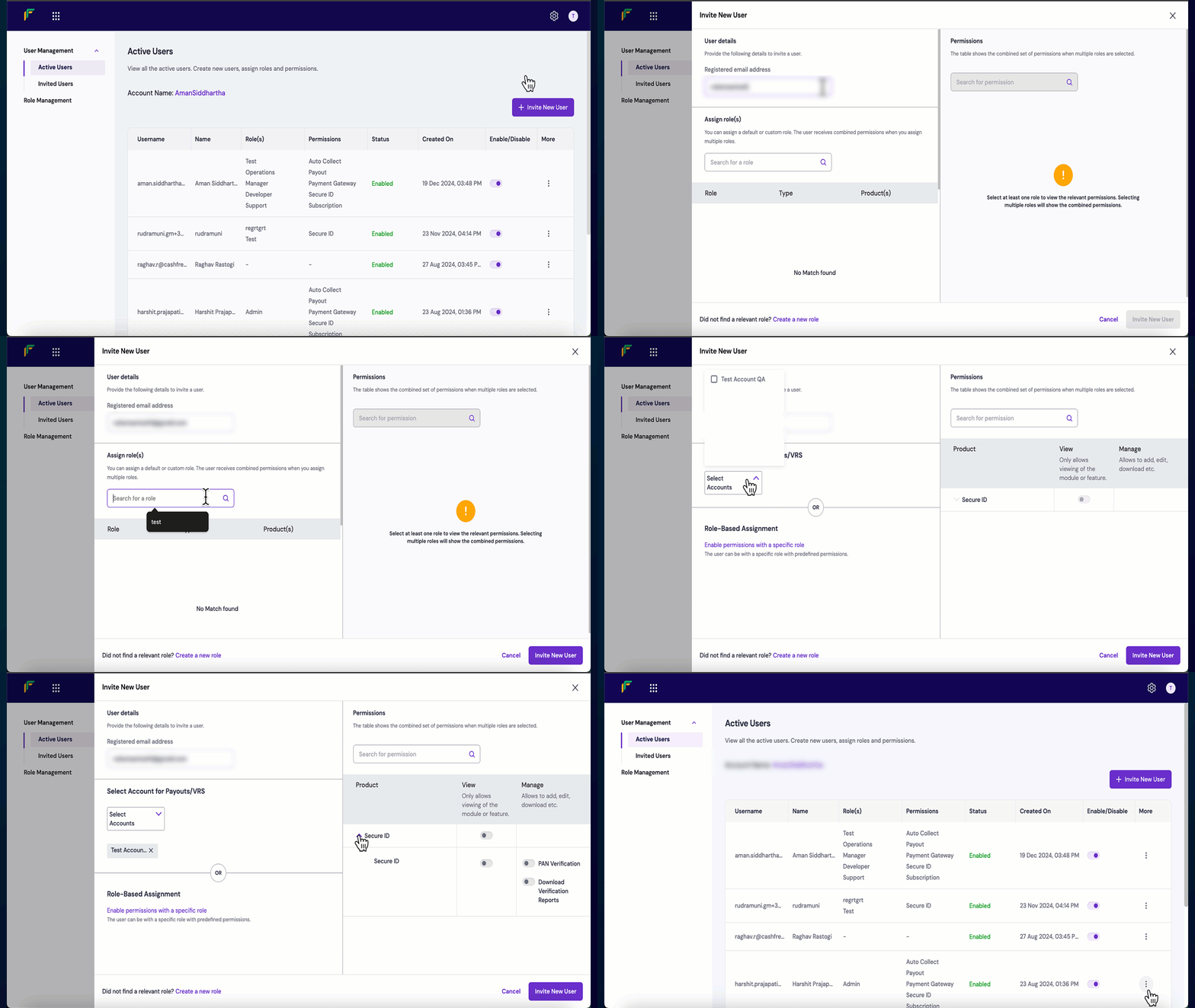
Manage existing users
The User Management screen displays all active and invited users in your account. You can enable or disable users, edit their permissions, and remove users when necessary.- View and filter users
- Edit user details
- Disable or delete a user
The user management table displays the following information:
- User email: The email address of the user
- Roles: The roles assigned to the user
- Status: Active or Invited status
-
Enable or disable toggle: Enable or disable user access
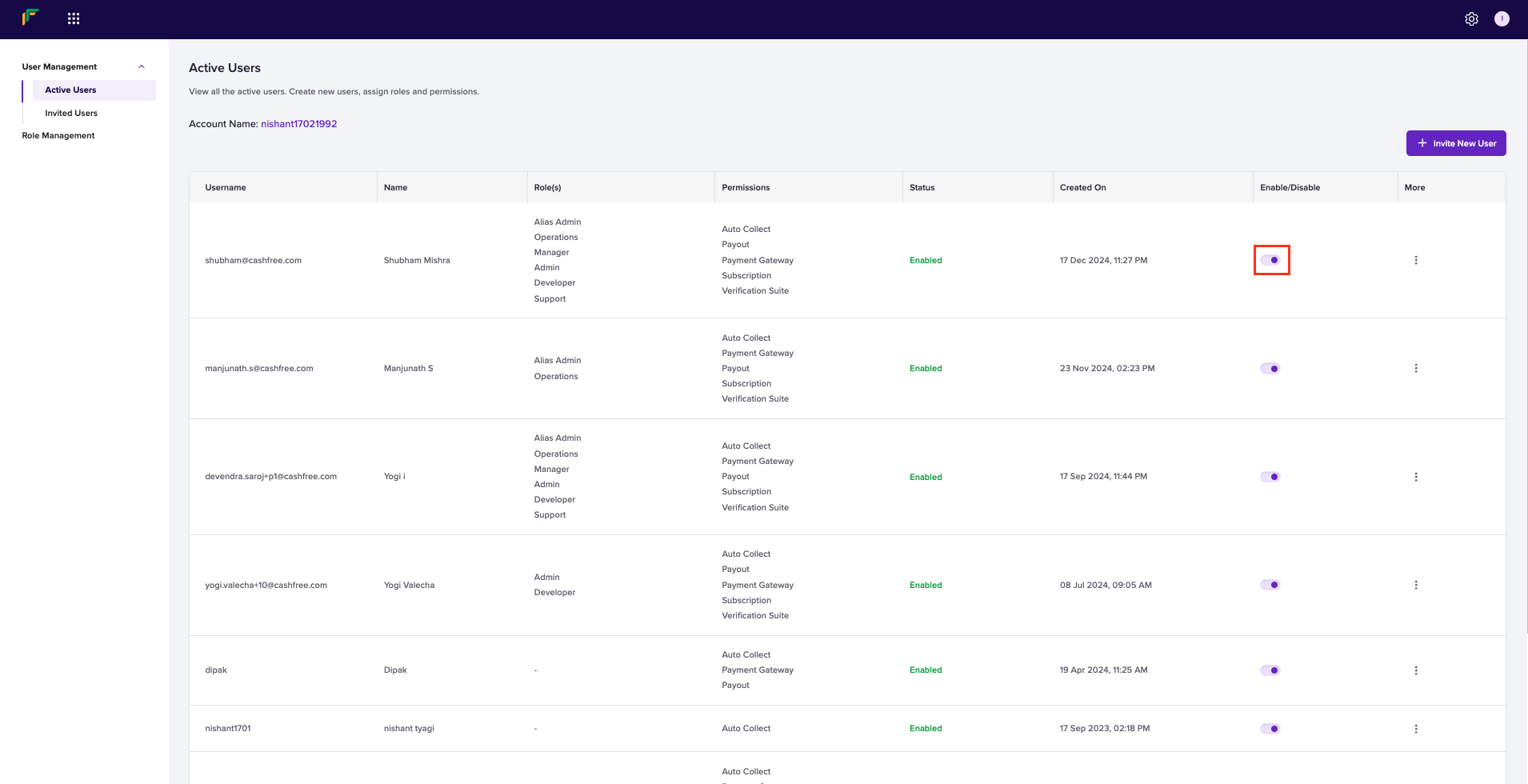
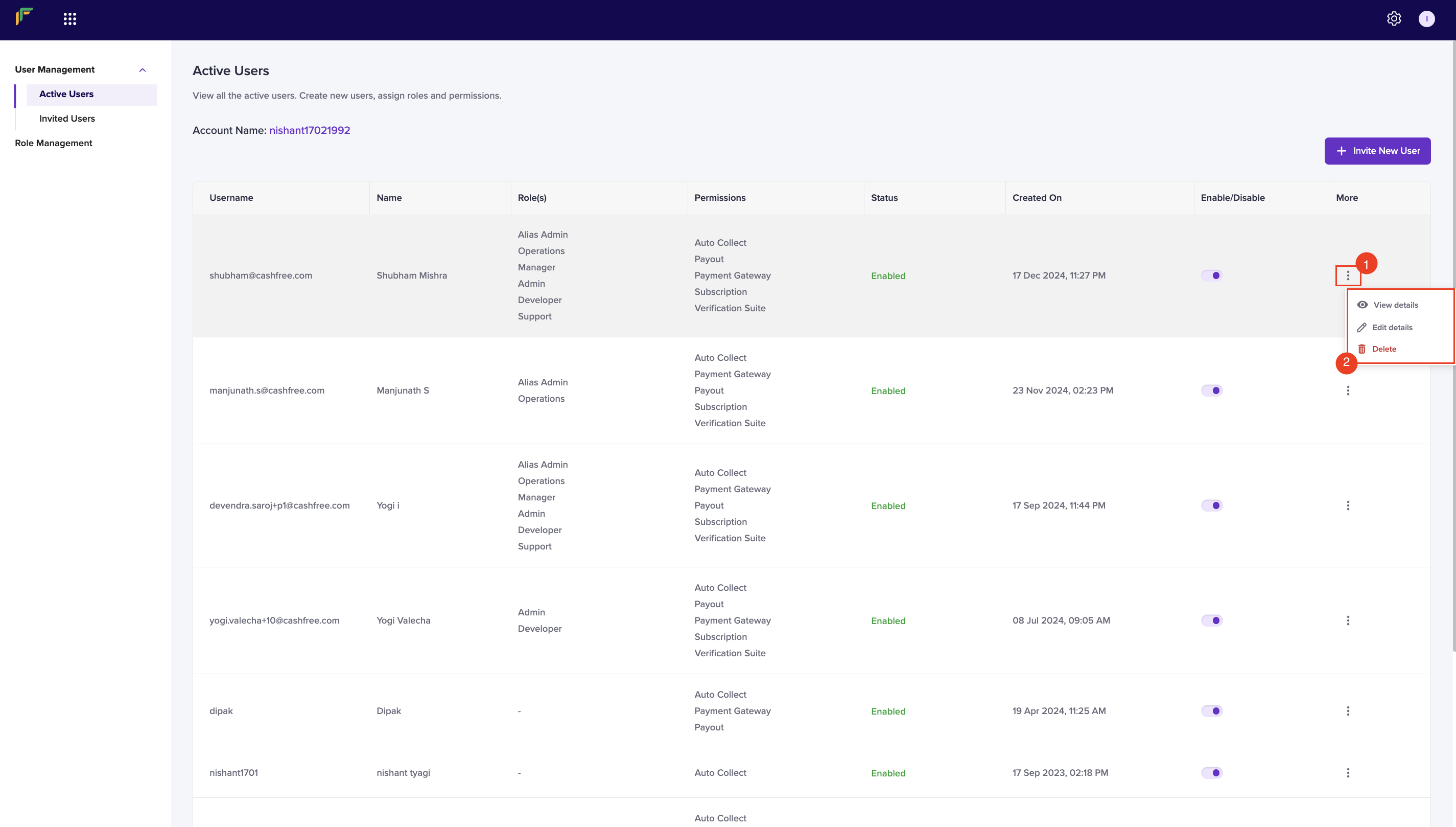
View user details
To view comprehensive details about a user’s roles and permissions:- Log in to the Merchant Dashboard.
- Navigate to Settings > Access Management > User Management.
- Locate the user in the table and select the ellipsis (⋮) icon.
- Select View details.
Role management
Beyond the five default roles, you can create custom roles with specific permission sets tailored to your organisation’s needs. Custom roles enable you to define precise access levels for specialised team functions that don’t align with the default roles.Create a custom role
You can create roles that grant access to specific features or products. For example, you can create a role that allows users to view Payment Gateway orders but nothing beyond that, or a role that provides full access to payouts but read-only access to payments. Follow these steps to create a custom role:- Log in to the Merchant Dashboard.
- Navigate to Settings > Access Management > Role Management.
- Select New Role.
- Enter the following information in the Create New Role popup:
- Role: Enter a descriptive name for the role (for example, “Payment Gateway Viewer” or “Payout Manager”)
- Description: Provide a clear description of the role’s purpose and intended use
- Configure permissions using the permissions table:
- Search for a permission: Use the search bar to find specific permissions
- Product dropdown: Navigate through different products and features
- View toggle: Enable permissions that allow users to view modules or features
- Manage toggle: Enable permissions that allow users to add, edit, download, or delete
- Select Create New Role.
Manage custom roles
Once you have created custom roles, you can edit or delete them as your organisation’s needs change.- Edit a role
- Delete a role
To modify an existing custom role:
- Log in to the Merchant Dashboard.
- Navigate to Settings > Access Management > Role Management.
- Locate the role in the table and select the ellipsis (⋮) icon.
- Select Edit role.
- Update the role name, description, or permissions as needed.
- Select Update Role.
Permissions framework
The permissions framework provides granular control over what users can view and manage across all Cashfree products and features. Understanding how permissions work helps you create effective roles and grant appropriate access to your team members.How to access permissions
Permissions appear in the Merchant Dashboard when you work with users and roles:-
When inviting or editing users:
- Navigate to Settings > Access Management > User Management
- Select Invite New User or edit an existing user
- The Permissions section displays all enabled permissions based on assigned roles or direct permission grants
-
When creating or editing roles:
- Navigate to Settings > Access Management > Role Management.
- Select New Role or edit an existing role.
- Use the permissions table to configure View and Manage permissions for each product and feature.
-
When viewing user details:
- Navigate to Settings > Access Management > User Management.
- Select the ellipsis (⋮) icon next to a user and choose View details.
- The popup displays all permissions currently enabled for that user.
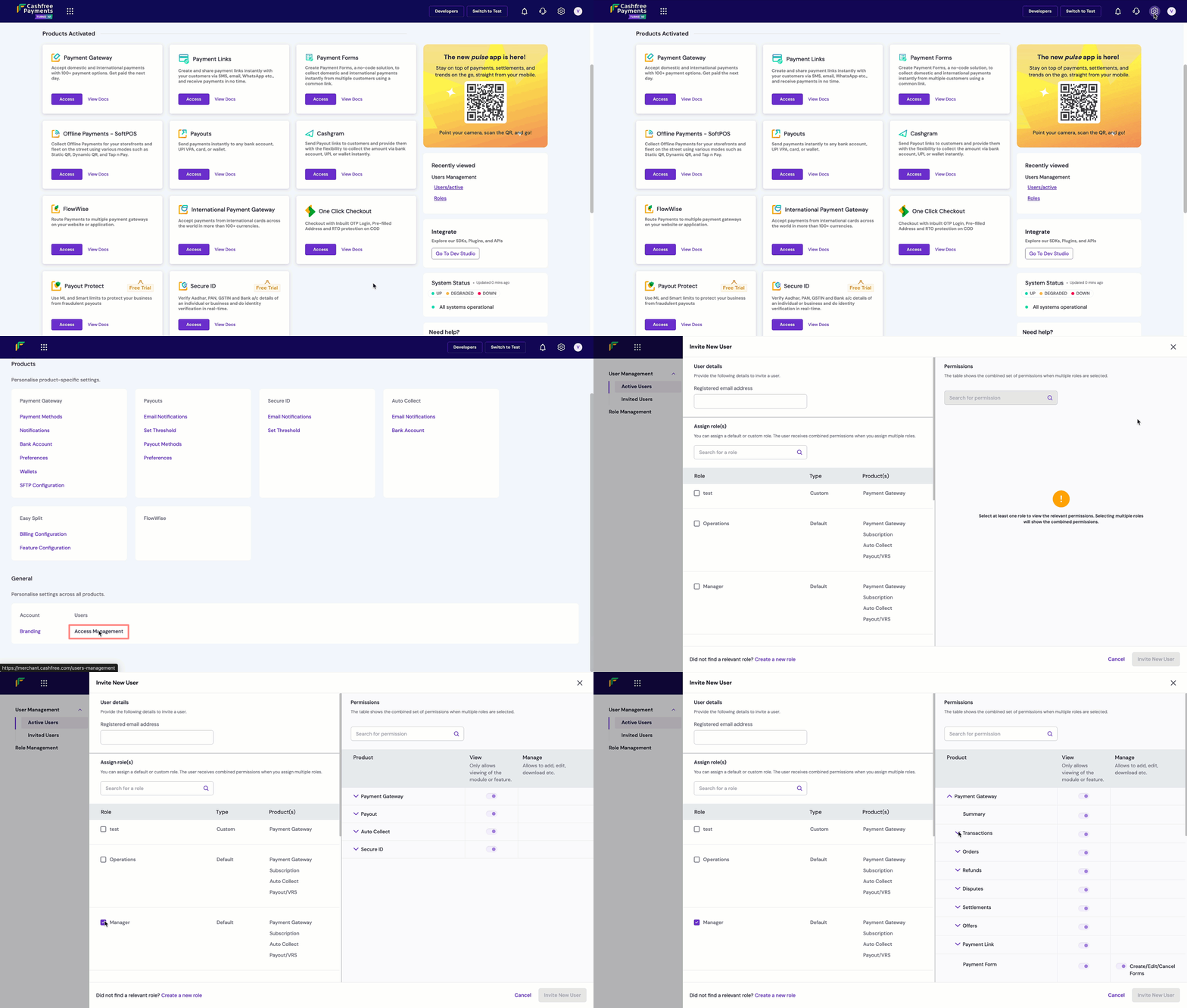
Permission levels
Each feature in the dashboard supports two permission levels:- View: Allows users to view information but not make changes. Users can access dashboards, view transactions, download reports, and see configuration settings.
- Manage: Provides full access to add, edit, download, delete, and configure features. This level includes all View permissions plus the ability to make changes.
Account-specific permissions
For products like Payouts and Virtual Account Services, you can grant permissions for specific accounts rather than all accounts. This allows you to:- Limit users to specific business units or brands
- Provide segregated access in multi-account setups
- Control access to specific fund sources or settlement accounts
Best practices
Follow these recommendations to implement secure and effective access management:Security practices
Security practices
- Principle of least privilege: Grant users only the permissions they need to perform their job functions
- Regular access reviews: Periodically review user access and remove permissions that are no longer required
- Disable inactive users: Disable or delete user accounts for team members who no longer require access
- Use role-based access: Prefer role-based assignments over direct permissions for easier management and consistency
Role design practices
Role design practices
- Create focused roles: Design roles for specific job functions rather than broad access levels
- Use descriptive names: Name roles clearly to indicate their purpose (for example, “Finance Viewer” instead of “Role 1”)
- Document role purposes: Use the description field to explain when and why to use each role
- Review before assigning: Always review the combined permissions before assigning multiple roles
User management practices
User management practices
- Verify email addresses: Ensure user email addresses are correct before sending invitations
- Communicate with users: Inform users when you grant or change their access
- Monitor login activity: Use the login history feature to track user access patterns
- Require 2FA: Enable two-factor authentication for all users accessing the dashboard
Operational practices
Operational practices
- Separate duties: Assign different responsibilities to different users to maintain checks and balances
- Use approval workflows: For payouts, assign Initiator and Approver roles to different users
- Maintain audit trails: Keep records of who has access to what and when changes are made
- Test before production: Test new roles or permission changes with a single user before broad deployment