

- General settings: Configure offers banner and failure state action
- Payment method ordering: Customise payment method sequence and enable AI personalisation
- Social proofing: Display credibility indicators to build customer trust
Access the customisation page
To access the PG Business Customisation page:- Log in to the Merchant Dashboard.
- Go to Payment Gateway > One Click Checkout > Customisation.
- Select the PG Business Customisation tab.
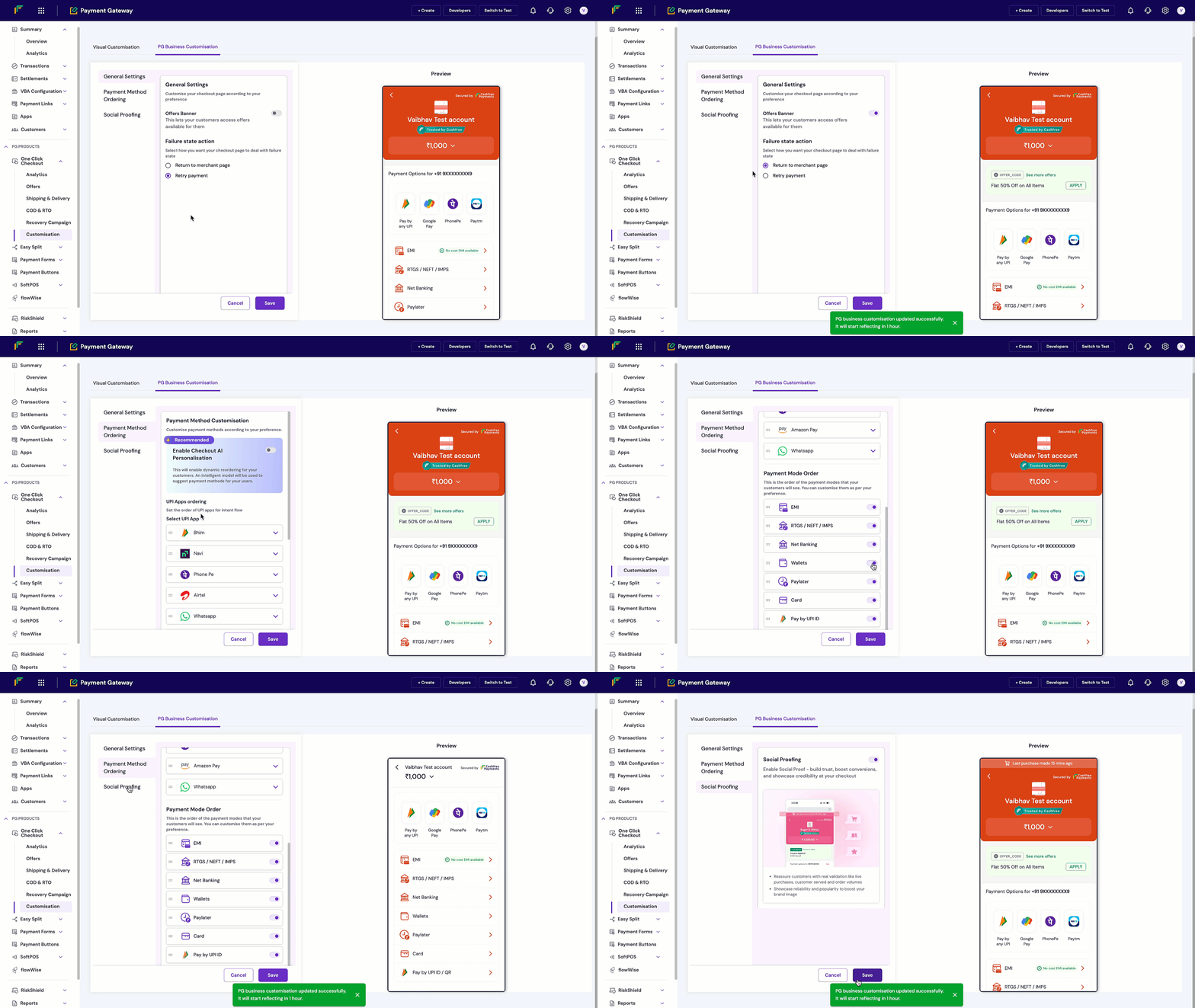
General settings
The General Settings section allows you to configure basic checkout page preferences.Offers banner
The Offers Banner displays available offers to customers during checkout. To enable the Offers Banner, toggle the Offers Banner switch to the ON position. When enabled, customers see an offer code section with applicable offers on the checkout page.The banner displays offers that are currently active and applicable to the customer’s transaction.
Failure state action
This setting determines how the checkout page responds when a payment fails. You can choose from the following options:- Return to merchant page: Redirects the customer back to your website or application.
- Retry payment: Keeps the customer on the checkout page to attempt payment again.
- Under Failure state action, select your preferred option.
- Click Save to apply your changes.
Payment method ordering
This section allows you to customise the order in which payment methods appear on the checkout page.Enable checkout personalisation
When enabled, an intelligent model dynamically reorders payment methods based on customer preferences and historical success rates. This feature is recommended for optimising conversion rates. To enable this feature, toggle the Enable Checkout AI Personalisation switch to the ON position.Payment apps ordering
You can customise the order in which UPI payment apps appear to customers. To configure UPI app ordering:- In the Payment Method Customisation section, locate UPI Apps ordering.
- Click Select UPI App to view available UPI payment apps.
- Choose from the available options such as Google Pay, Paytm, PhonePe, Cred, WhatsApp, Amazon Pay, Airtel, Bhim, Mobikwik, Navi, and Popclub.
- Use the drag handles (:::) on the left side of each payment method to reorder them by dragging up or down.
- Click Save to apply your ordering preferences.
The order you set here determines the sequence in which UPI apps appear on the customer-facing checkout page.
Social proofing
Social proofing builds trust by displaying credibility indicators on your checkout page. This feature helps boost conversions by showcasing your business’s reliability and popularity. To enable social proofing:- In the left navigation menu, select Social Proofing.
- Toggle the Social Proofing switch to the ON position.
- Real validation metrics such as live purchases and customer served counts
- Order volumes and reliability indicators to boost your brand image
Save and preview
The customisation page includes a live preview panel on the right side. This panel displays how your checkout page appears to customers in real time as you make changes. To save your changes, click the Save button at the bottom of each section after configuring your preferences. A confirmation message appears: “PG business customisation updated successfully. It will start reflecting in 1 hour.”Troubleshooting
If you encounter issues with the customisation feature, review the following solutions:| Issue | Solution |
|---|---|
| Changes not reflecting | Allow up to one hour for changes to propagate to your live checkout page. |
| Unable to save settings | Ensure all required fields are completed before clicking Save. |
| Preview not updating | Refresh the customisation page and try again. The preview updates automatically as you make changes. |