

Key features
- Partial COD support: Collect a flat amount or a percentage of the order value upfront. This helps reduce RTOs, improve order reliability, and manage risk for high-value or first-time orders—while offering customers flexible payment options and protecting your business.
- Flexible COD rules: Set minimum and maximum order amounts to control COD eligibility.
- Custom transaction types: Choose between full COD or Partial COD based on your business needs.
- Handling fee configuration: Apply handling fees for COD orders to offset delivery risks or costs.
- Tiered rule setup: Create multiple slabs to apply different COD rules for different order ranges.
Configuring COD and RTO
To configure COD:- Log in to the Merchant Dashboard.
- Under One-Click Checkout, select Access.
- In the left pane, select COD & RTO.
- Select the Configuration tab.
-
Under Configure COD Rules, do the following:
- In Transaction Amount, set the Min Amount and Max Amount for COD.
-
Under Transaction Type, choose one of the following:
- COD: Enter a value in the Handling Fee field.
- Partial COD: Specify the advance amount to collect. Choose a Flat Amount or Percentage of the order value.
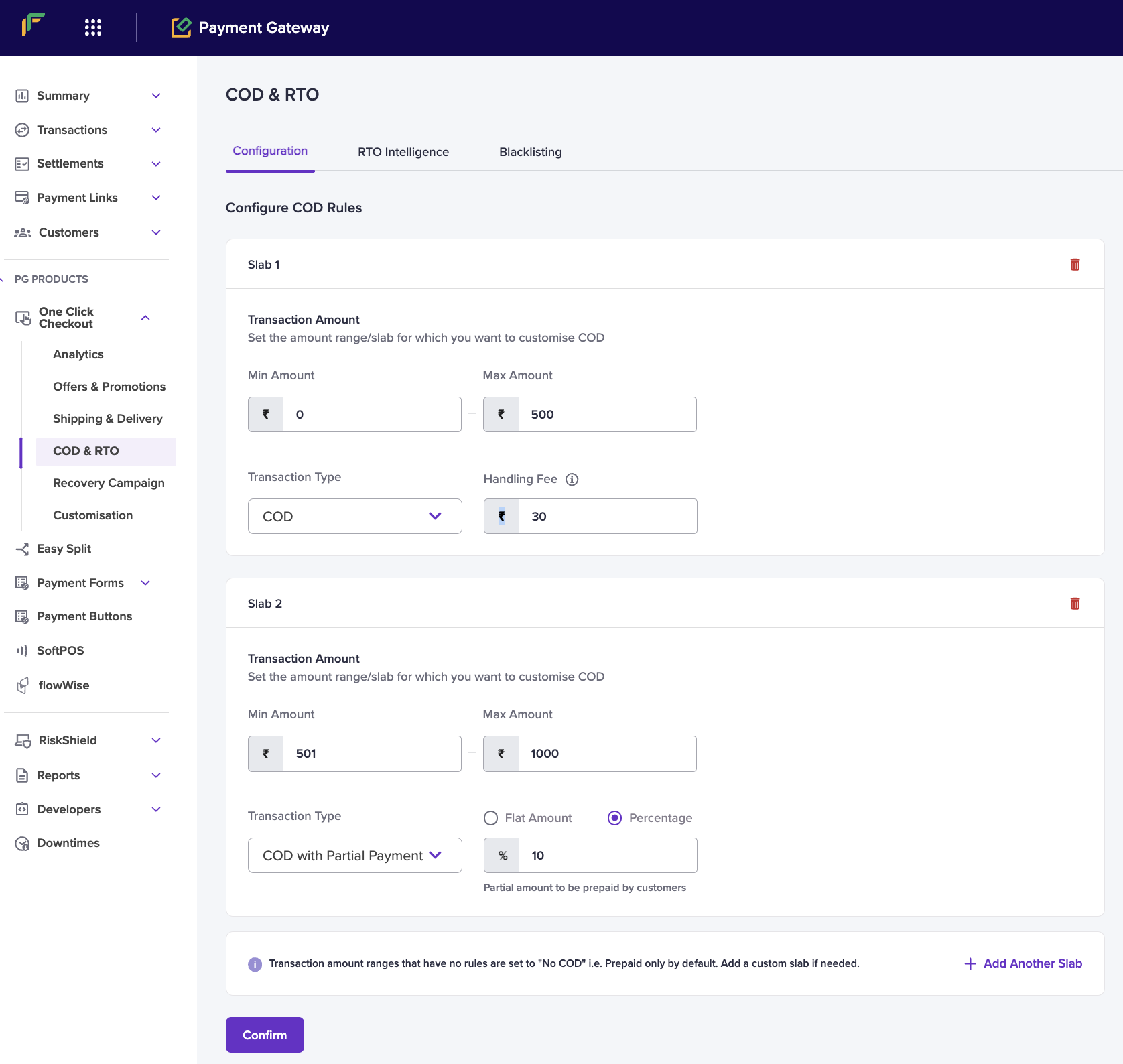
- To define more COD rules, select Add Another Slab.
- Select Confirm to save your settings.
Note: If a transaction amount doesn’t match any rule, COD is disabled and the payment defaults to prepaid. Create custom slabs as needed.
FAQs
Can I add a handling fee for Partial COD orders?
Can I add a handling fee for Partial COD orders?
Yes. For standard COD, enter a value in the Handling Fee field when configuring your COD rules (see step 5 above). For Partial COD, the Merchant Dashboard only lets you set the advance collection as a Flat Amount or Percentage, with no handling fee field. To add a handling fee for Partial COD orders, contact the Support Form to apply the required configuration changes on your account.